
Offers
Automatic Offers
Connect an eligible marketplace and configure its automatic offer rules.
Last updated 2026-11-17
In short
Before you start
Review marketplace status
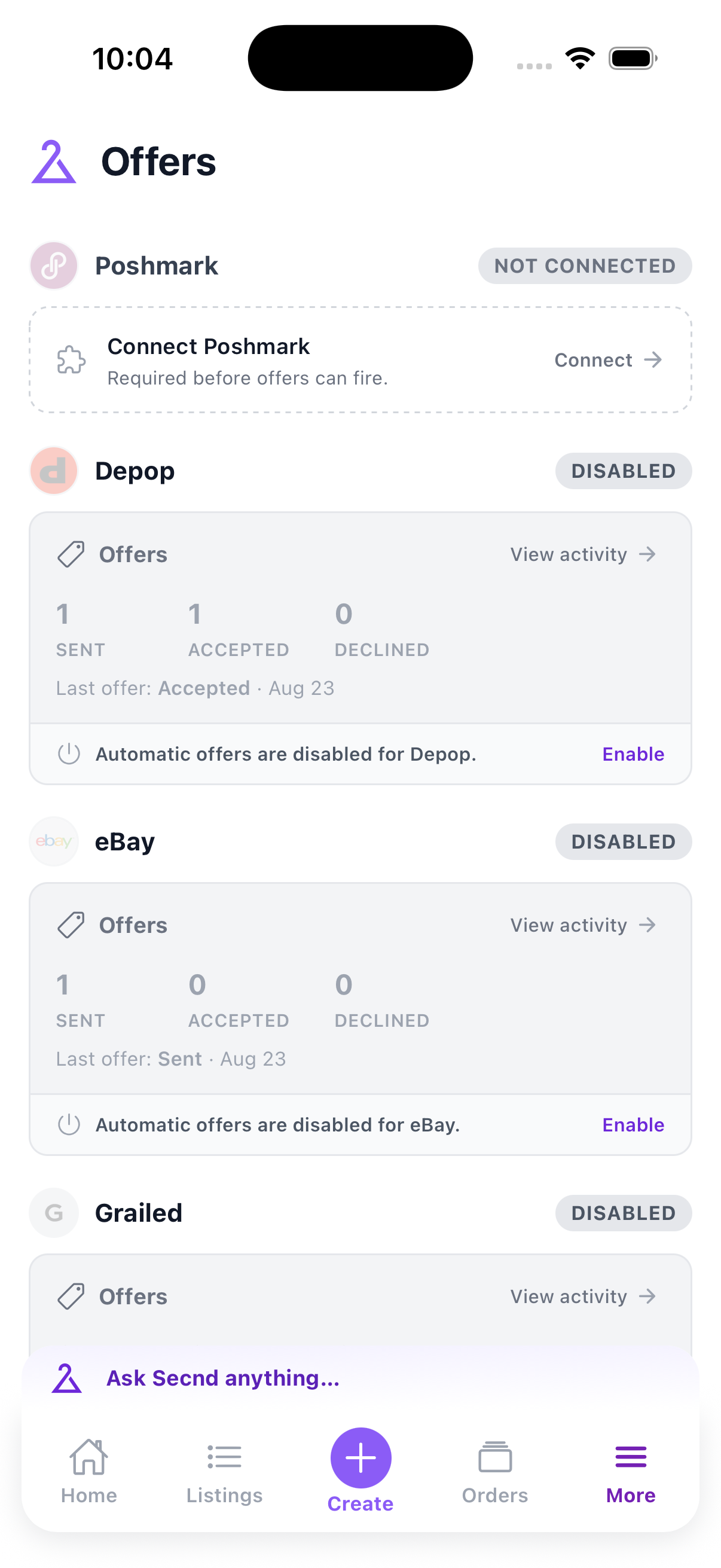
Connect an offer marketplace
Note
Configure offers
Set marketplace rules
Each marketplace has its own rule set. Changing Poshmark rules does not change Depop, eBay, or Grailed. Tap Settings on an enabled card to revise its rules or turn it off.
What automatic offers do
Automatic offers send a discount to buyers who show interest in your listings, so you don't have to watch every like and send each offer by hand. When a buyer likes or watches an eligible listing, SECND waits the delay you chose, checks that the item is still for sale, reads its current price on the marketplace, works out the offer from your rules, and sends it through that marketplace's own offer feature.
A few things hold on every marketplace:
- Offers are rounded down to a whole dollar.
- SECND never offers on an item it knows is sold or delisted.
- The same buyer doesn't get a second offer on that marketplace within an hour.
Which marketplaces support it
| Marketplace | Who gets the offer | Lowest discount | Guide |
|---|---|---|---|
| Poshmark | Buyers who liked the listing | 10% | Poshmark Offers |
| Depop | The buyer who liked the listing | 5% | Depop Offers |
| eBay | Watchers eBay says can receive an offer | 5% | eBay Offers |
| Grailed | Not sent yet | 5% | Grailed Offers |
Each guide covers that marketplace's extra fields, limits and error messages. Grailed shows a card and a rules form, but SECND can't send offers there yet; the Grailed Offers guide explains why.
Rules every marketplace shares
Tap Enable (or Settings once it's on) on a card to open Offer rules. Every marketplace has these fields:
- Auto-offers active switch. Turn it off to pause; the card then reads Disabled and nothing sends until you turn it back on.
- Discount: from the marketplace minimum up to 99%.
- Discount from: Current sale price or Original price.
- Send after engagement: 0 to 180 minutes. New rules start at 5.
- Increase if ignored: one stronger follow-up offer after 48 hours, up to the Maximum follow-up discount you set.
- Skip new arrivals: no offers on listings younger than 1 to 90 days (7 by default).
- Tier overrides: tap Add a tier rule to give some items a different discount by price or by listing age in days. Tiers run top to bottom and the first match wins; items no tier matches get the default offer.
Review activity
The marketplace card shows offers sent, accepted, and declined, and the date and status of the last offer. Tap View activity to open Offer activity: one row per offer with the item, the offer price, the price it was taken from, the buyer when the marketplace shares one, and the reason for any skip or failure. Switch between the last 7D and 14D, and filter by marketplace once more than one has activity.
Common issues
Have a question that isn't answered here? .