Set up photo measurements and choose which garment measurements SECND records.
Last updated 2026-08-22
In short
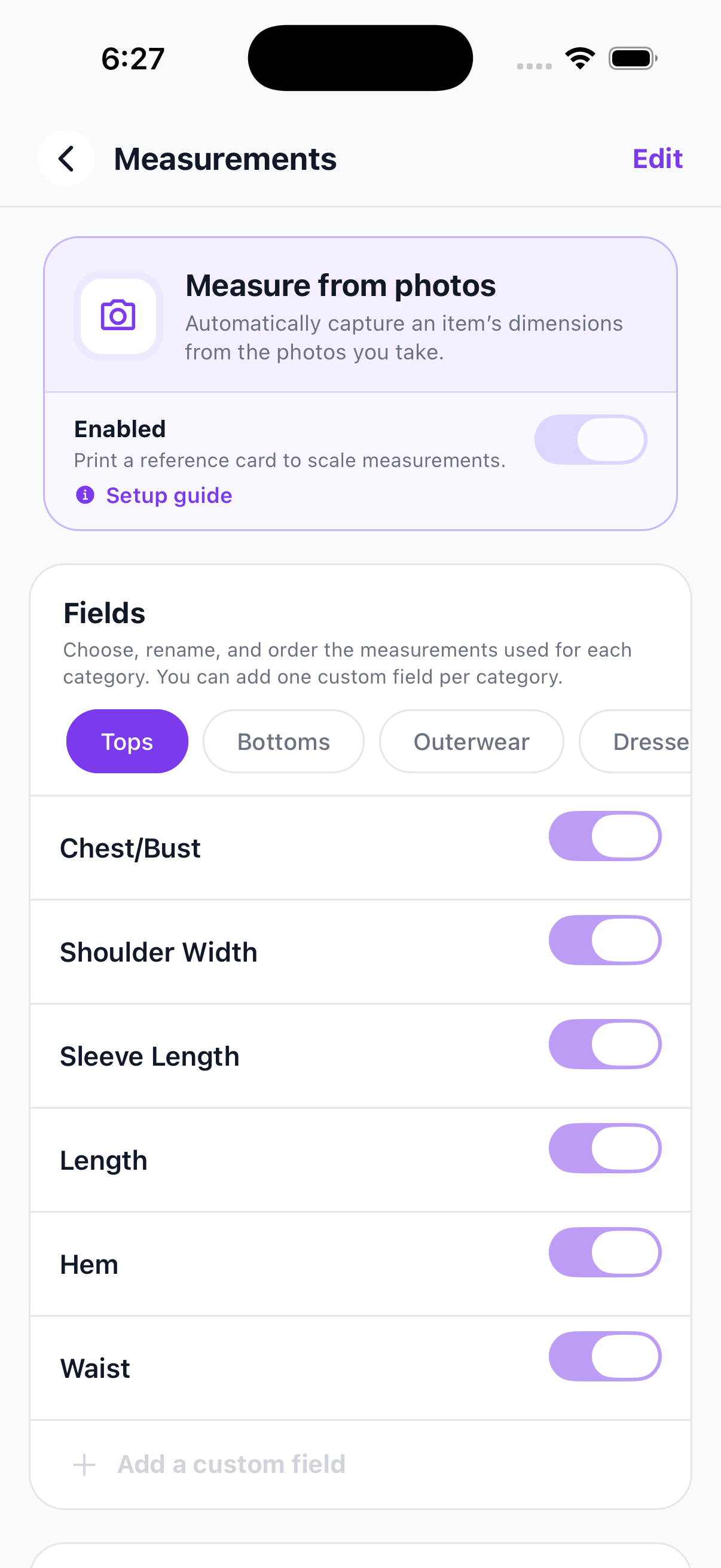
Open More, Settings, Measurements. Enable photo measurements, choose the fields you use, and complete the setup guide before taking a measurement photo.
Tap More, Settings, then Measurements. Keep Measure from photos enabled if you want the camera controls.
Choose a category such as Tops or Bottoms. Enable, rename, and order the fields that should appear for that category. The Listing display section controls how measurements are added to descriptions and which units SECND uses.
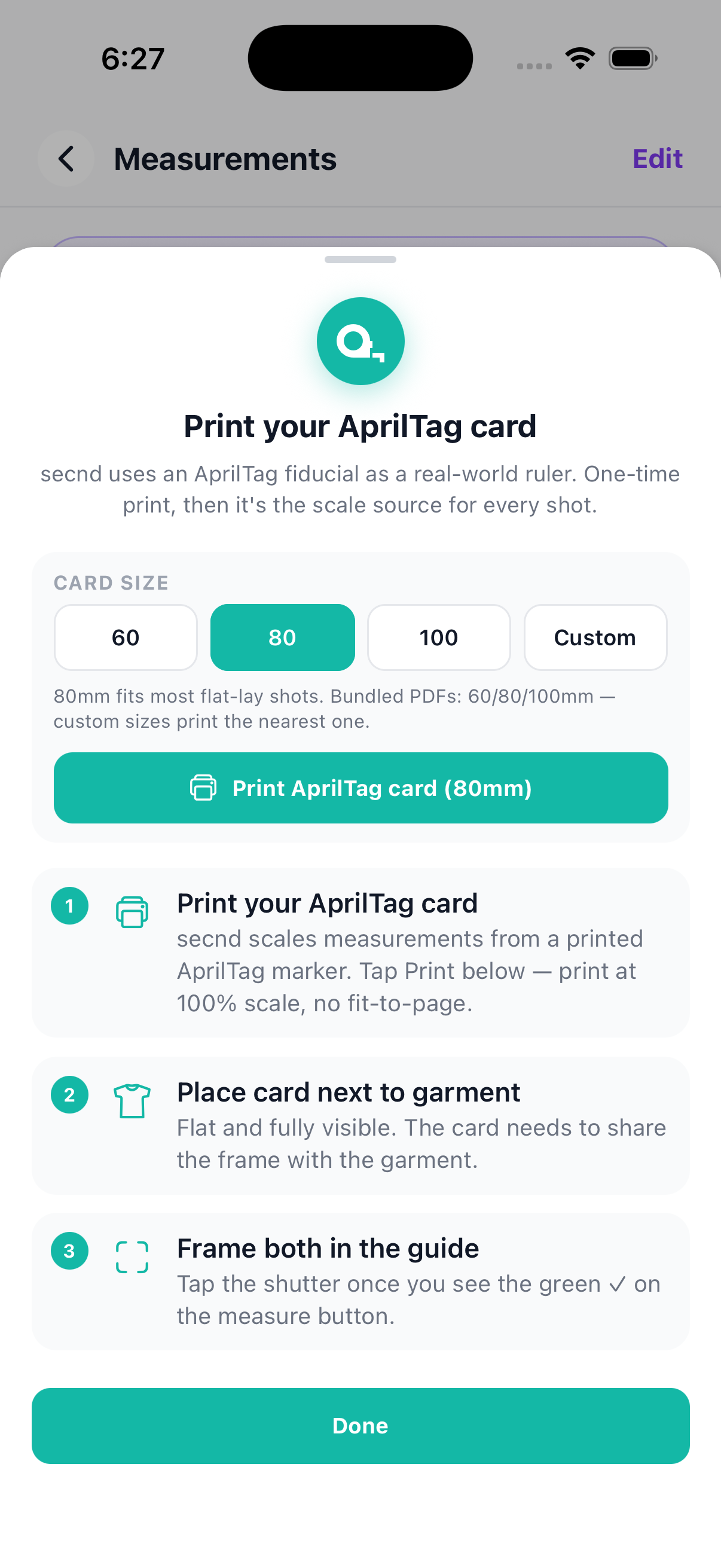
Phones without depth measurement use a printed AprilTag card as a scale reference. Pick a card size, print it at 100 percent scale, and place it flat beside the garment. Phones with depth support show their own framing instructions instead.
Heads up
Do not use fit-to-page when printing the reference card. Changing its printed size makes the calculated measurements wrong.
Open the listing camera and turn on Measure Mode. Lay the garment flat and frame the whole item. If you use a reference card, keep the entire card visible in the same photo. Review and correct the generated measurements before saving the listing.