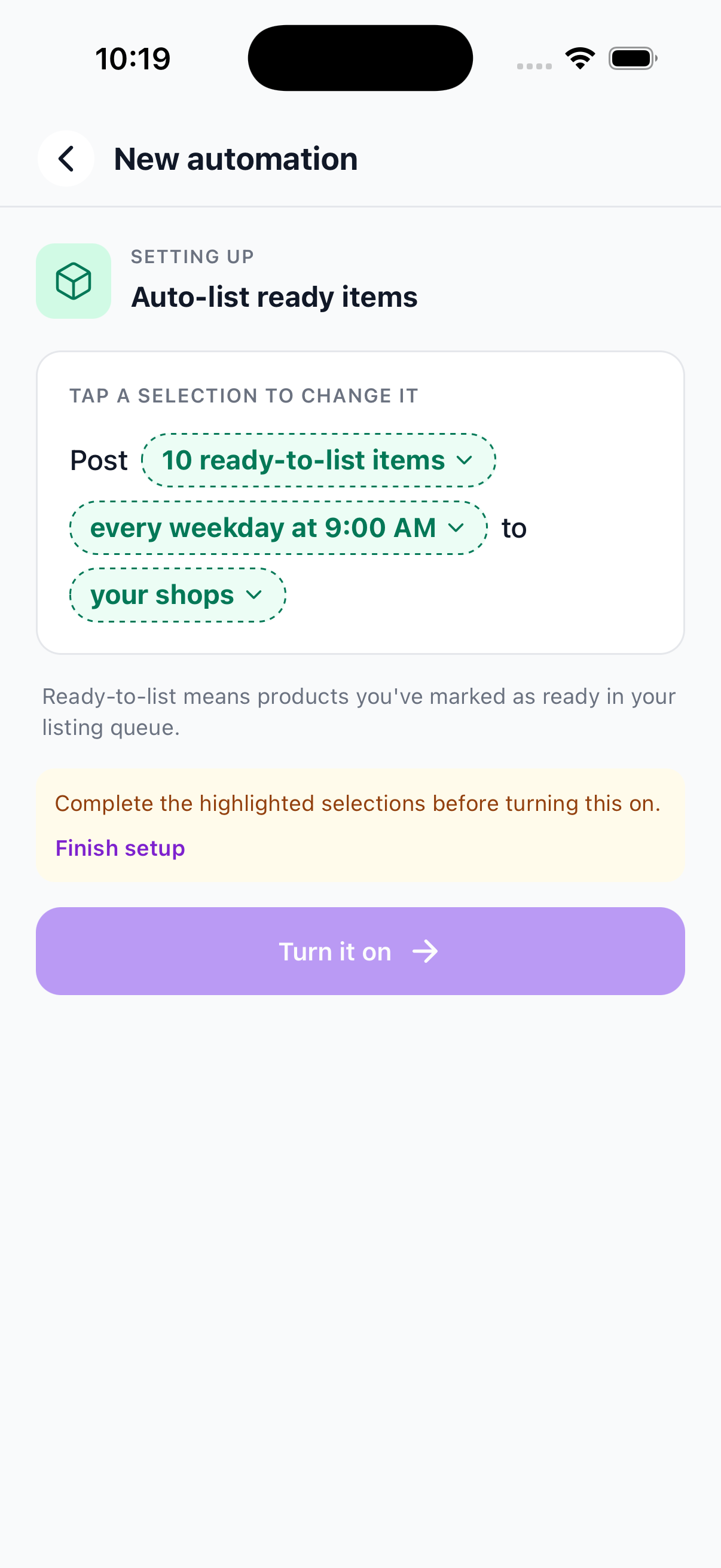
Tap More → Automations, find Auto-list Ready Items, then tap Set this up.
2.
Choose the rules
Tap each highlighted choice in the sentence to change it: how many ready-to-list items each run posts, when it runs, and the destination shops. Only items you added to your listing queue are posted.
3.
Review and enable
Read the summary, save the automation, and leave its switch enabled. SECND runs it on the days and time you selected.
Tap See activity, then tap a run to see how many items succeeded, failed or were skipped. Tap View items to see each listing and the reason any item failed.
5.
Pause, edit, or run now
Use the switch to pause the automation. Tap Change settings to edit it, or open the action menu and choose Run now for an immediate run.
Auto-list works only from your listing queue. It never picks drafts on its own. The setup screen puts it this way: Ready-to-list means products you've marked as ready in your listing queue.
Each queued item is posted to the marketplaces you picked when you added it to the queue, on any of them that are still connected.
An item is posted to a marketplace only once it passes that marketplace's listing checks. An item that is already live on a marketplace is never posted there twice.
Sold or deleted items are skipped.
A posted item leaves the queue. An item that fails stays in the queue.
Each run posts at most the number you set, and never more than 50 items.
Photograph an item and tap Save to keep it as a draft (see Create Listings), or create several at once with Add as group (see Bulk Create Listings from Photos). Fix anything the issue panel lists before you queue the item.
2.
Turn this automation on first
The queue only works while a ready-to-list automation is on. Until then, the listing sheet shows Turn on a ready-to-list automation to use the queue.
3.
Add drafts to the queue
On Listings, select your drafts and choose to list them. Pick the Marketplaces, then tap Add followed by the number of drafts and to queue. Only drafts can be queued.
A run posted nothing. The queue may be empty, or every queued item may already be live or still failing a marketplace's listing checks. Open the item, fix the fields the issue panel lists (see Review item details), and it will be tried on the next run.
Note
Select a marketplace to add drafts to the queue. Choose at least one marketplace in the listing sheet before tapping the queue button.
Note
Finish marketplace listing setup before turning this on. Tap Finish setup and complete that shop's setup. More fixes are in Set Up Automations.