
Connections
 Connect Square POS
Connect Square POS to keep online and in-store inventory in sync.
Last updated 2026-05-24
In short
Before you start
You need owner-level access to your Square account. If you have multiple locations, decide which one SECND should track — you can change this later, but historical sales stay attached to the previous location.
Step-by-step
Open Connect
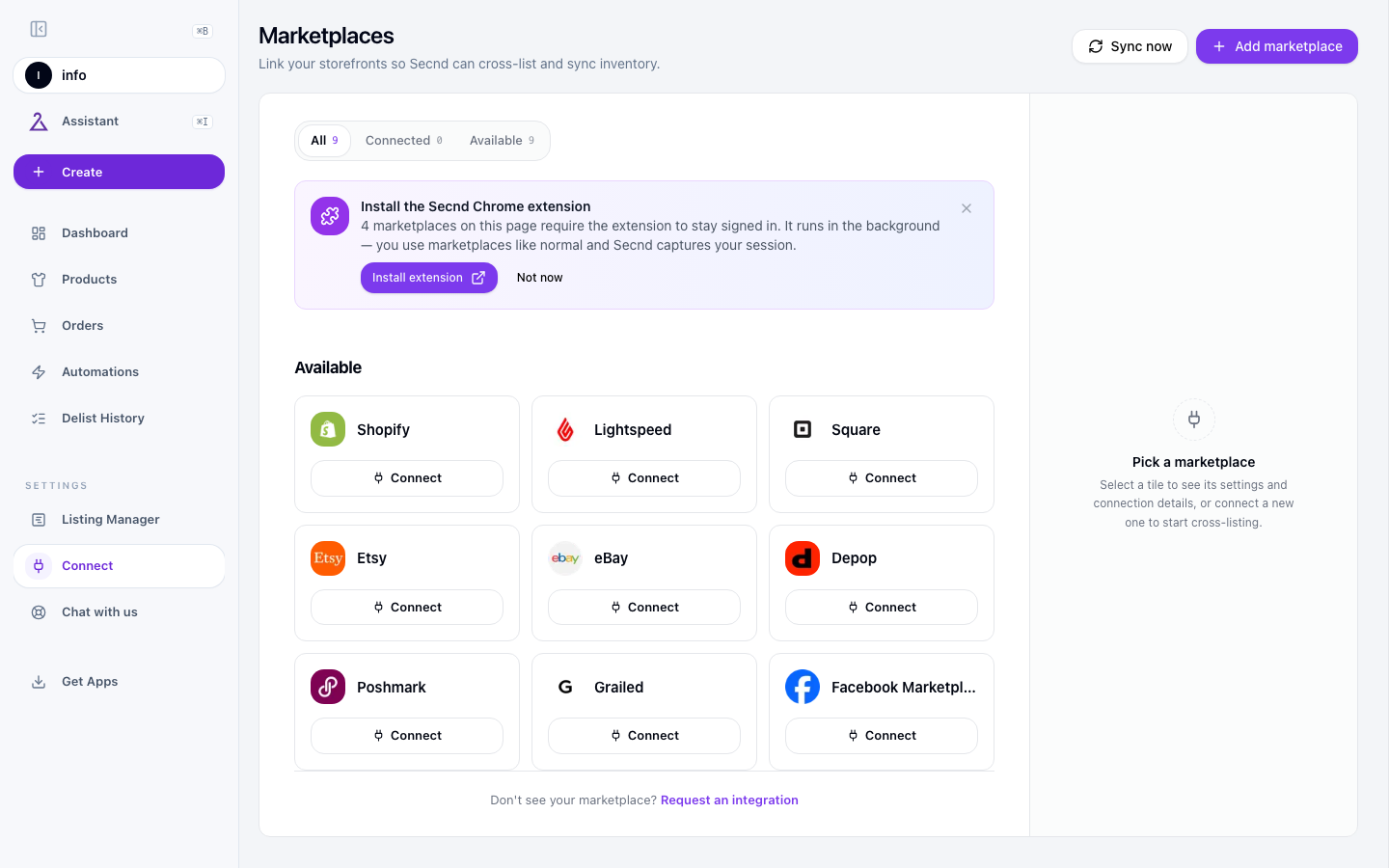
Click Connect on the Square card
Sign in and approve
Pick your default location
Settings to configure
Open Square in Integrations. Its settings include the fields below.
Currency
Read-only. SECND detects the currency from your Square account on connect. Square accounts are single-currency, so this matches what you set in Square.
Default Location
Which Square location SECND treats as the inventory source. Multi-location shops should set this carefully — sales report against the chosen location, and that's what cross-listing decisions key off of.
Use SKU as Title
When on, SECND uses the Square item's SKU as the canonical title. Useful for shops that catalog by SKU rather than long product names.
Archive After Sale
When on (default), Square items hide from the register and online store the moment they sell, instead of staying visible at zero stock. Most resale shops want this on; turn off if you sell open-stock items like services or made-to-order goods.
Common issues
Related guides
Square Terminal consignment checkout
Pair a Square Terminal and use it for consignment register card payments.
Connect Lightspeed
Connect Lightspeed X-Series so your in-store sales sync to SECND.
Quick Start: Your First 15 Minutes
Sign up, work through the Get Set Up checklist, connect a marketplace, import, cross-list, automate.
Have a question that isn't answered here? .